


In the fast-paced world of digital business, time is the one resource you cannot manufacture. Yet, many businesses and individuals are losing hours every week to a silent productivity killer: the mechanical Hard Disk Drive (HDD).
Expert Analysis from Qootec
With 15+ years in SSD and RAM manufacturing, our R&D team provides technical insights backed by real-world production data.
For decades, the spinning platter of the HDD was the standard. But as software becomes more demanding, the storage bottleneck has become undeniable. Upgrading to a Solid State Drive (SSD) is no longer a luxury; it is the single most impactful upgrade you can make to extend the life of a PC or server.
Here is your comprehensive guide on when to make the switch and which technology fits your needs.
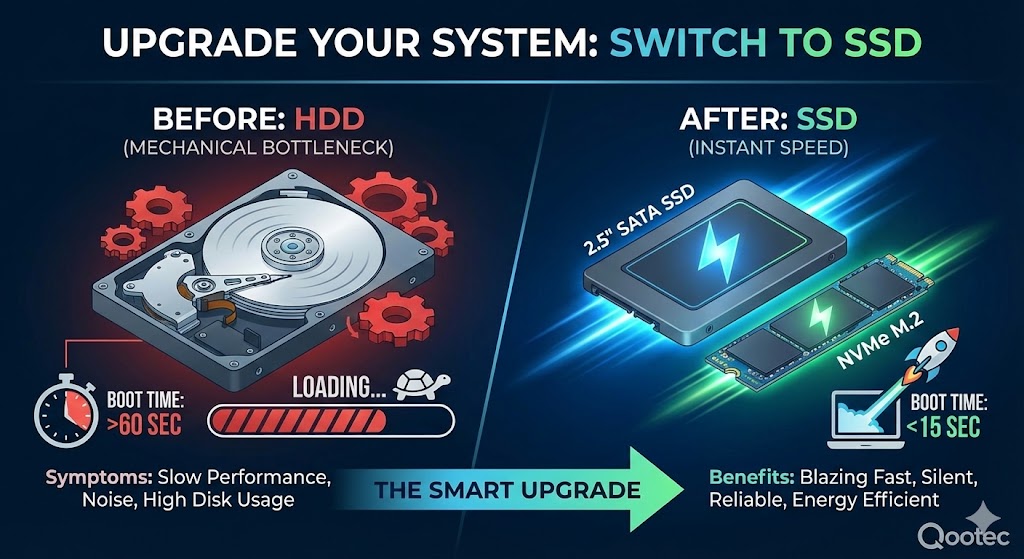
The Bottleneck: Understanding the Technology
To understand why your computer feels sluggish, you have to look under the hood. Traditional HDDs rely on mechanical arms reading data from spinning magnetic platters. This physical movement creates latency.
In contrast, SSDs use NAND flash memory, allowing for near-instant data access. This isn’t just about raw speed; it’s about the engineering behind the storage. If you are curious about the complex nanotechnology that makes this possible, read our deep dive: How Are SSDs Made? A Journey from Sand to Speed.
When you remove the mechanical limitations, you don’t just get faster boot times; you get a system that feels responsive and fluid.
The “When”: 4 Signs You Need to Upgrade Immediately
How do you know if your current storage is failing you? If you recognize any of these symptoms in your fleet of office computers or personal workstation, it is time to switch:
-
Boot Times Exceed 60 Seconds: A modern workflow shouldn’t start with a coffee break while Windows loads. An SSD can cut boot time to under 15 seconds.
-
The “100% Disk Usage” Error: If your Task Manager shows disk usage at 100% even when you aren’t doing heavy tasks, your HDD is overwhelmed by modern background processes.
-
Loud Noise and Heat: Grinding or clicking sounds are the death knell of a hard drive.
-
Concerns About Data Integrity: Mechanical drives are fragile. A single drop can destroy the platters. For businesses, data safety is paramount. We explored this critical topic in our article: SSD Reliability and Data Security: What You Need to Know.
The “What”: Choosing the Right Interface
Once you’ve decided to upgrade, the next question is: Which SSD do I need? This depends largely on your current motherboard and performance requirements.
1. The Universal Solution: 2.5″ SATA SSD
For most legacy desktops and older laptops (3+ years old), the 2.5 SATA SSD is the perfect drop-in replacement. It uses the same connectors as your old mechanical hard drive but delivers speeds up to 5x faster. It is the most cost-effective way to revitalize aging hardware without replacing the entire machine.
2. The Performance Powerhouse: NVMe PCIe
If you are working with newer workstations, content creation rigs, or high-performance gaming setups, SATA might still be a bottleneck. The modern standard is NVMe, which connects directly to the motherboard via the PCIe interface.
For maximum throughput, installing an NVMe Gen4x4 2280 drive unlocks blistering speeds, essential for video editing, large database management, and heavy multitasking.
Curious about where storage speed is heading next? Check out our insights on The Future of SSD Technology.
Don’t Forget the Memory: The RAM + SSD Combo
While an SSD handles long-term storage and loading apps, your RAM (Random Access Memory) handles active tasks. Upgrading storage without checking your memory is like putting a Ferrari engine in a car with flat tires—you won’t get the full performance benefit.
Many systems that are due for an SSD upgrade are also likely running on older memory standards, such as DDR3. To ensure your upgraded system runs smoothly:
-
For Desktop Towers: Ensure you have sufficient capacity by adding a high-quality DDR3 Desktop memory module.
-
For Laptops: If your notebook is lagging, pairing a new SSD with a DDR3 SODIMM for Notebook upgrade can make a 5-year-old laptop feel brand new.
Conclusion: A Smart Investment
Switching to an SSD is rarely a question of if, but when. Whether you are an IT manager looking to extend the lifecycle of corporate laptops or an enthusiast seeking better performance, the move from HDD to SSD offers the highest ROI of any hardware upgrade.
By choosing the right form factor—be it a reliable 2.5″ SATA or a lightning-fast NVMe—and balancing it with adequate RAM, you ensure your digital infrastructure is ready for the demands of today and tomorrow.
Technical review: Qootec R&D Department | Last updated: February 2026
Related Solutions
Looking for the right storage or memory solution? Explore our product lines:
- SSD Product Line — From consumer to industrial-grade
- DDR5 Memory — Next-gen performance
- DDR4 Memory — Proven reliability